How to Fix Shaky Video and Bad Audio Online Without Extra Software
You get home from a shoot, open the footage, and wince. The camera wobbles on every step, and the voice sounds like it was recorded inside a cardboard box with a fan running nearby. The moment was good. The file is not. The good news is that most of this can be repaired after the fact, and you do not need to install heavy software to do it. This guide walks through what causes shaky video and poor audio, how to fix both in your browser, and how to avoid the same problems on your next shoot.
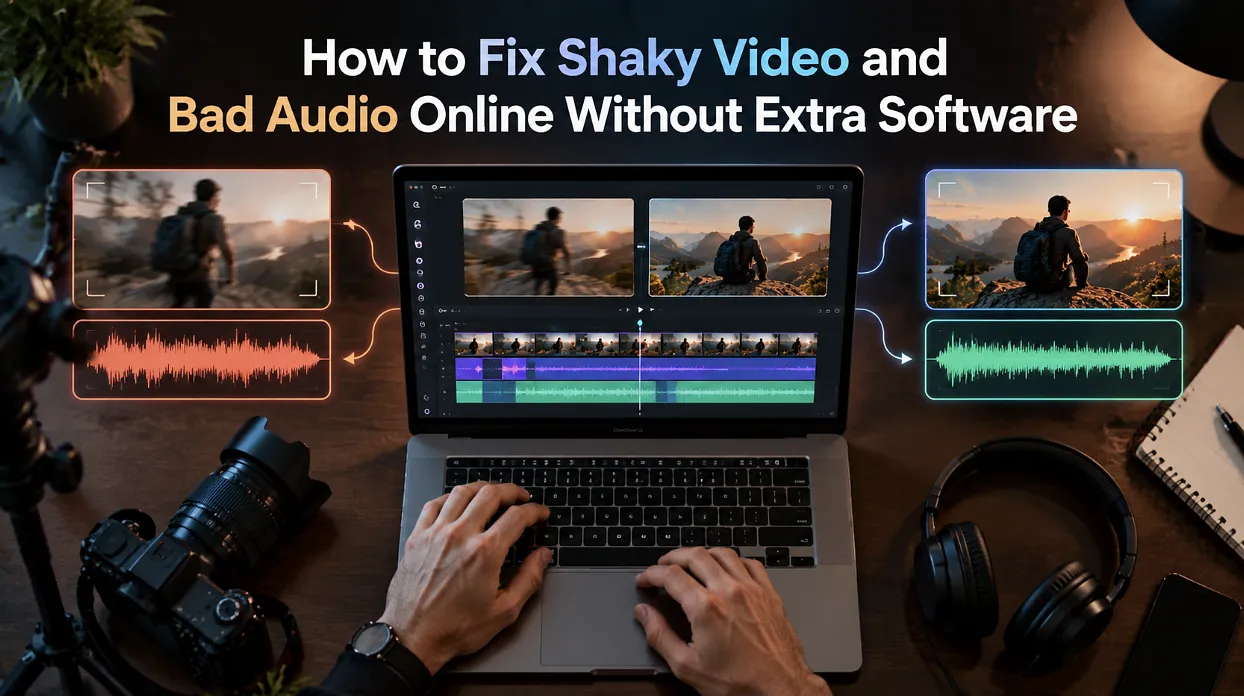
Why Footage Ends Up Shaky or Noisy
Most bad footage comes from a small set of habits. Handheld shots with no support are the classic cause of shake, especially when you walk, zoom, or hold a phone with one hand. Wind, long lens shots, and low light make it worse.
Bad audio usually has a different set of causes. The microphone sits too far from the speaker, the room has hard walls that bounce sound around, or something in the background hums away all day. Air conditioners, traffic, and fridges are the usual suspects. Once you know which problem you have, the fix gets much easier to choose.
What You Can Realistically Fix After the Shoot
It helps to set expectations before you start.
Mild to moderate shake can be smoothed out well. Severe shake, like a shot filmed while running, can be improved but rarely becomes perfectly steady. Stabilisation works by cropping in slightly and shifting the frame to cancel movement, so you lose a bit of the edges.
Audio has similar limits. Steady background hum and room echo can be reduced a lot. Clipped audio, where the recording was distorted because it was too loud, is much harder to save. And if the voice was barely captured at all, no editor can invent what is not there.
How to Fix Shaky Video Online
Start with the picture, since cropping and stabilizing affect how the rest of the edit fits together.
- Upload the clip to a browser-based editor and drop it on the timeline.
- Trim first. Cut the dead sections before stabilizing so you are not processing footage you will throw away.
- Apply stabilization. Use the editor's 'fix or stabilize' option and check the result at full size, not in a tiny preview.
- Watch the edges. If the frame looks cropped too tightly, back off the strength.
- Check the motion. Over-stabilizing can create a floaty, wobbly look, so play the clip through twice.
Some editors now let you describe the problem in plain language instead of hunting through menus. In Invideo Editor, for example, you can type what you want changed and watch it happen on the timeline, then adjust the result by hand if it looks off.
How to Fix Bad Audio Online
Viewers forgive average video far more easily than bad sound, so give audio at least as much attention as the picture.
- Listen on headphones. Laptop speakers hide most problems.
- Reduce background noise. Use a noise reduction or dialogue cleanup option to lower hum and hiss without making the voice sound underwater.
- Balance volume. Bring quiet speakers up and loud moments down so the level feels steady from clip to clip.
- Trim silences and filler. Long pauses and "um" moments make audio feel worse than it is.
- Add music carefully. Keep it well below the voice, or leave it out of interview and talking-head videos.
Go easy on the sliders. Heavy noise reduction makes voices thin and robotic, which is often worse than the original noise. Small adjustments, checked by ear, beat one big fix.
Choosing an Editor for Browser-Based Fixes
Plenty of online editors can trim a clip, but fewer handle stabilization, cleanup, and captions in the same place. When you compare options, it helps to check whether the editor covers these basics:
- Video stabilization or a fix for shaky clips
- Audio cleanup and noise reduction
- A real timeline, not just templates
- Captions and music tools
- Works on any computer or phone with nothing to install
Invideo Editor is one option that covers those needs. It opens in your browser on any computer or phone, so you can edit videos online with nothing to install and nothing to learn first. You can cut clips, add music and captions, fix shaky video and bad sound, or type what you want changed and watch it happen. Because the changes land on an editable timeline, you can inspect each one and keep refining by hand.
A Simple Repair Workflow You Can Reuse
Here is a routine that works for most clips, from vlogs to interviews.
- Upload the raw footage and rough-trim the obvious junk.
- Stabilize the shaky clips and check the edges.
- Clean up the audio, starting with the loudest problem.
- Balance levels across all the clips.
- Add captions, since many people watch without sound.
- Export a short test and watch it on your phone.
- Fix anything that looks or sounds off, then export the final version.
If you have a long recording full of repeated takes and false starts, Invideo Editor can also assemble a cleaner first cut before you start repairing, so you spend your effort only on footage that will actually make it into the video. That saves real time when you are working through an hour of raw material.
Mistakes That Make Repairs Harder
- Fixing before trimming. You waste effort on footage you will delete.
- Over-stabilizing. Aggressive settings create an odd, floating look.
- Judging audio on laptop speakers. Problems hide until someone listens on headphones.
- Cranking noise reduction. Voices end up sounding thin and metallic.
- Skipping the phone test. Most viewers watch on a small screen, where shake and noise show up fast.
- Ignoring the source. No repair beats getting a cleaner recording in the first place.
Prevent the Problem Next Time
Repairs are handy, but a few habits reduce how often you need them. Rest your elbows against your body, lean on a wall, or use a cheap tripod or gimbal. Turn on your phone's built-in stabilization. Move the microphone closer to the speaker, record in a room with soft surfaces like curtains or carpet, and switch off fans and appliances before you press record. Do a ten-second test recording and listen back before the real shoot.
Conclusion
Shaky video and bad audio feel like disasters in the moment, but they are often fixable in a few minutes without installing anything. Trim first, stabilize with a light touch, clean up the sound by ear, and test on a phone before you publish.
Pick an editor that keeps the work on a real timeline so you stay in control, and Invideo Editor is worth testing if you want repair, cleanup, and assembly in one browser tab. A few good habits on set will save you even more time the next time you hit record.